How to Add Supported Languages
RhinoAgents allows your chatbots to be natively multilingual, enabling you to communicate with users globally in their native language—without needing multiple bots or external translation APIs.
Why Multilingual Support Matters
Adding multiple languages helps you: - Increase Conversion Rates: Users are 75% more likely to buy from websites presented in their native language. - Improve Customer Satisfaction: Support queries are resolved faster when users can express issues naturally. - Scale globally: Expand into new markets instantly using the same underlying AI agent knowledge base.
Important Requirement: Disable the Agent First
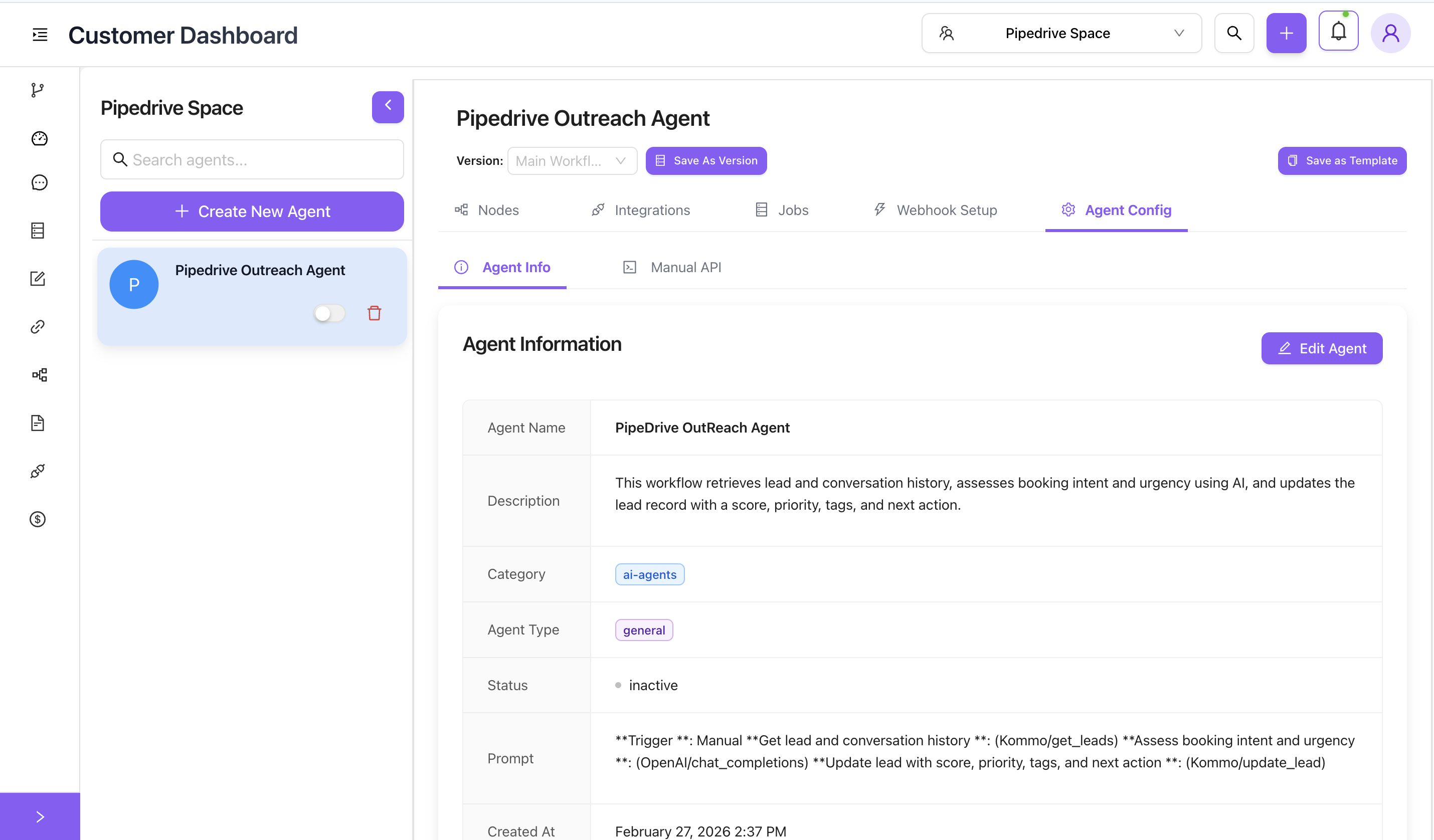
To modify language support, the agent must be disabled (inactive).
- Navigate to the Agent Info tab of your primary dashboard.
- Toggle the switch off on the left panel so the status changes to
inactive(the switch track will turn gray).
Steps to Configure Languages
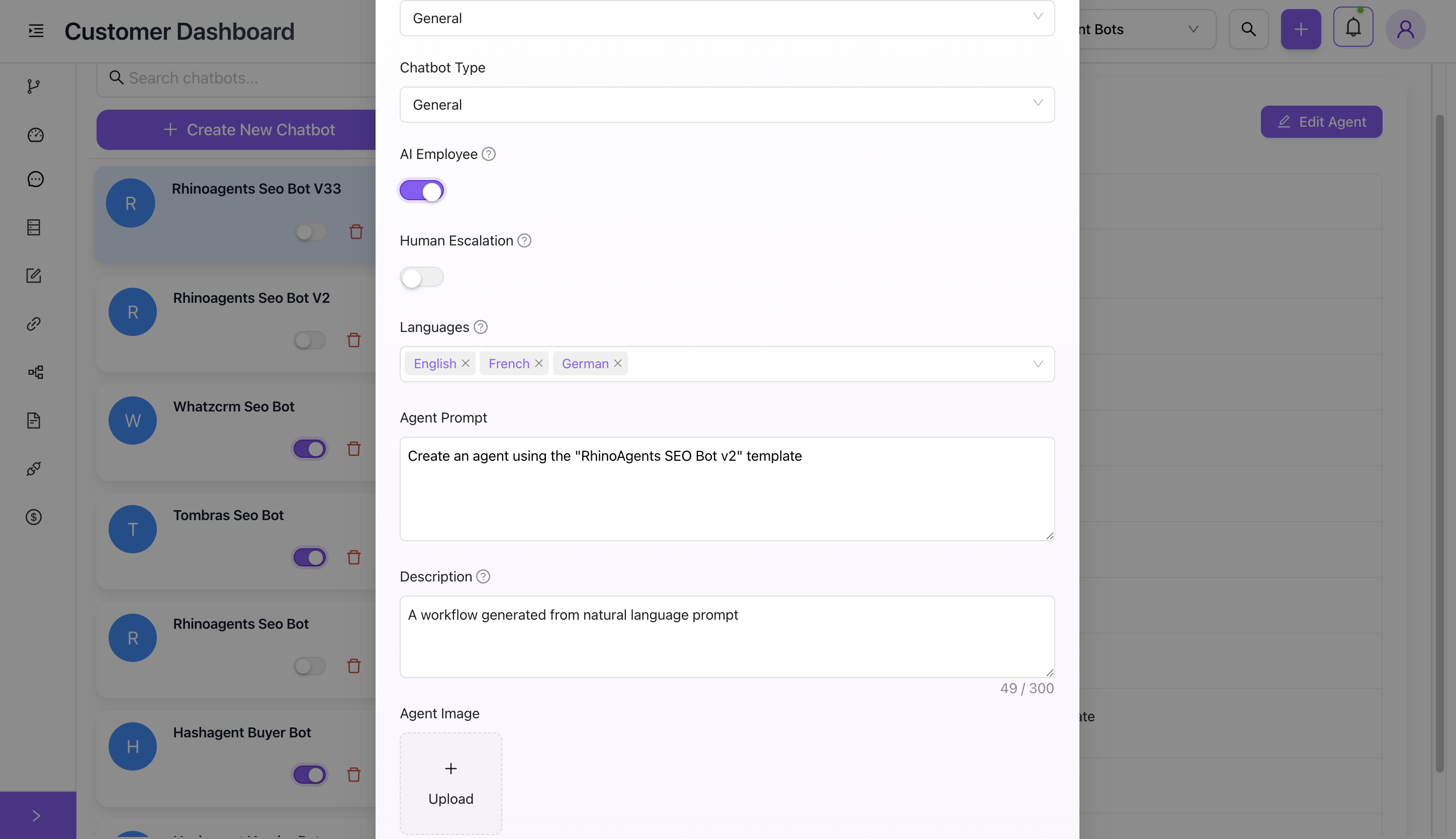
- Once the agent is inactive, click the purple Edit Agent button.
- Scroll down the modal to the Languages section.
- Select Languages:
- Click the dropdown and select the languages you want to support (e.g., English, French, German).
- Click the small 'x' next to any language tag to remove it.
- Click the purple Update Agent button to save your changes.
- Finally, re-enable the agent by toggling the switch back to active.
Testing Multilingual Support
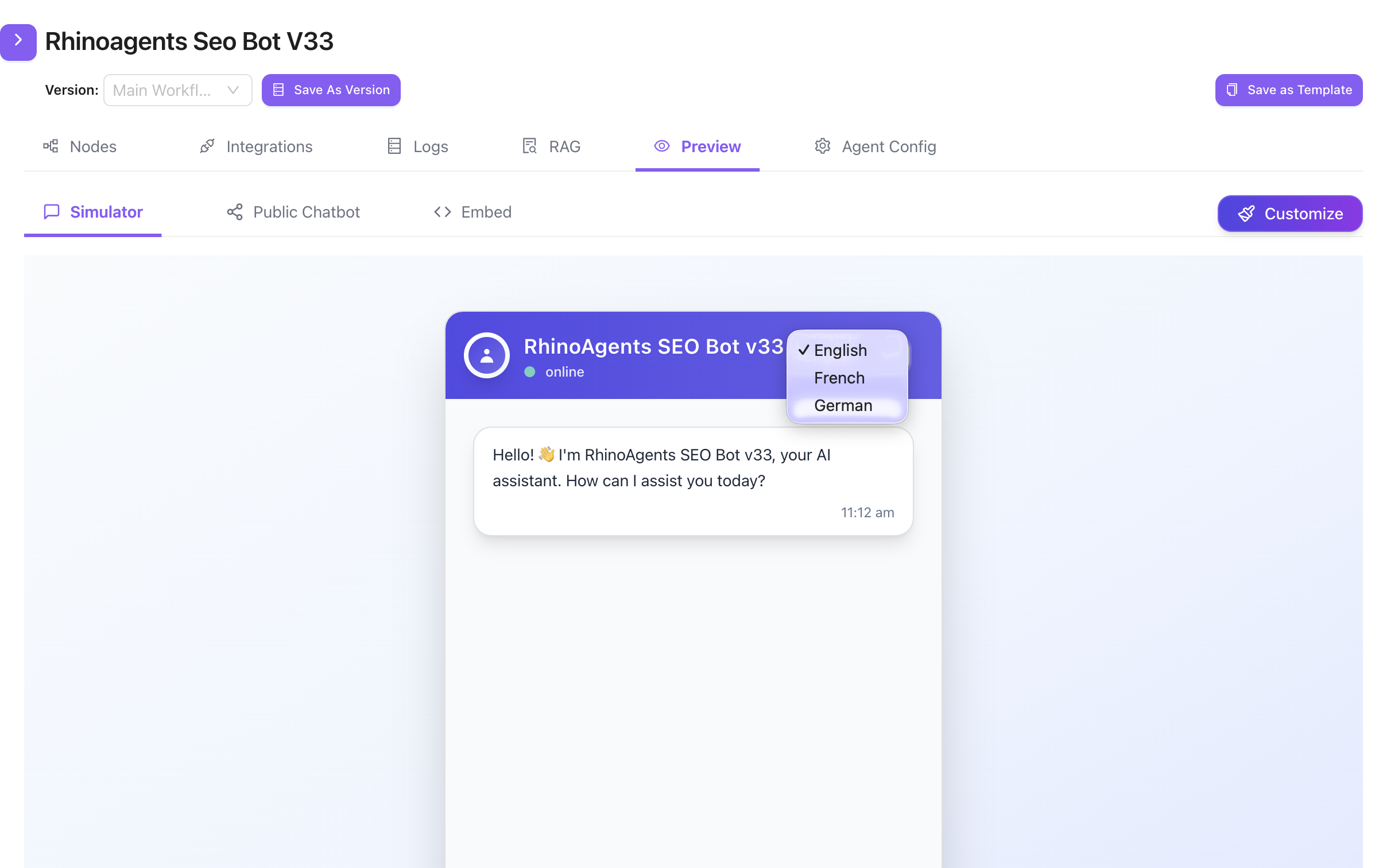
Once languages are enabled, you can verify they work perfectly directly in the Preview tab. Users will be able to select their preferred language directly from the chatbot interface's dropdown menu in the header.
When testing your bot in the Simulator, click the language dropdown to switch between your configured languages. The AI's language model will automatically pivot its responses to match the active language:
How It Works Behind the Scenes
When a user selects a language, the entire context of the conversation is dynamically aligned. The underlying prompt instructs the AI to access your knowledge base (even if it's written in English) and seamlessly translate the retrieved context and formulate the response purely in the user's chosen language.